How to Send an Invoice Online — Faster Payment Starts Here
Sending invoices by email attachment is slower than it needs to be. Here is how online invoicing actually works — and why the difference shows up directly in how fast you get paid.

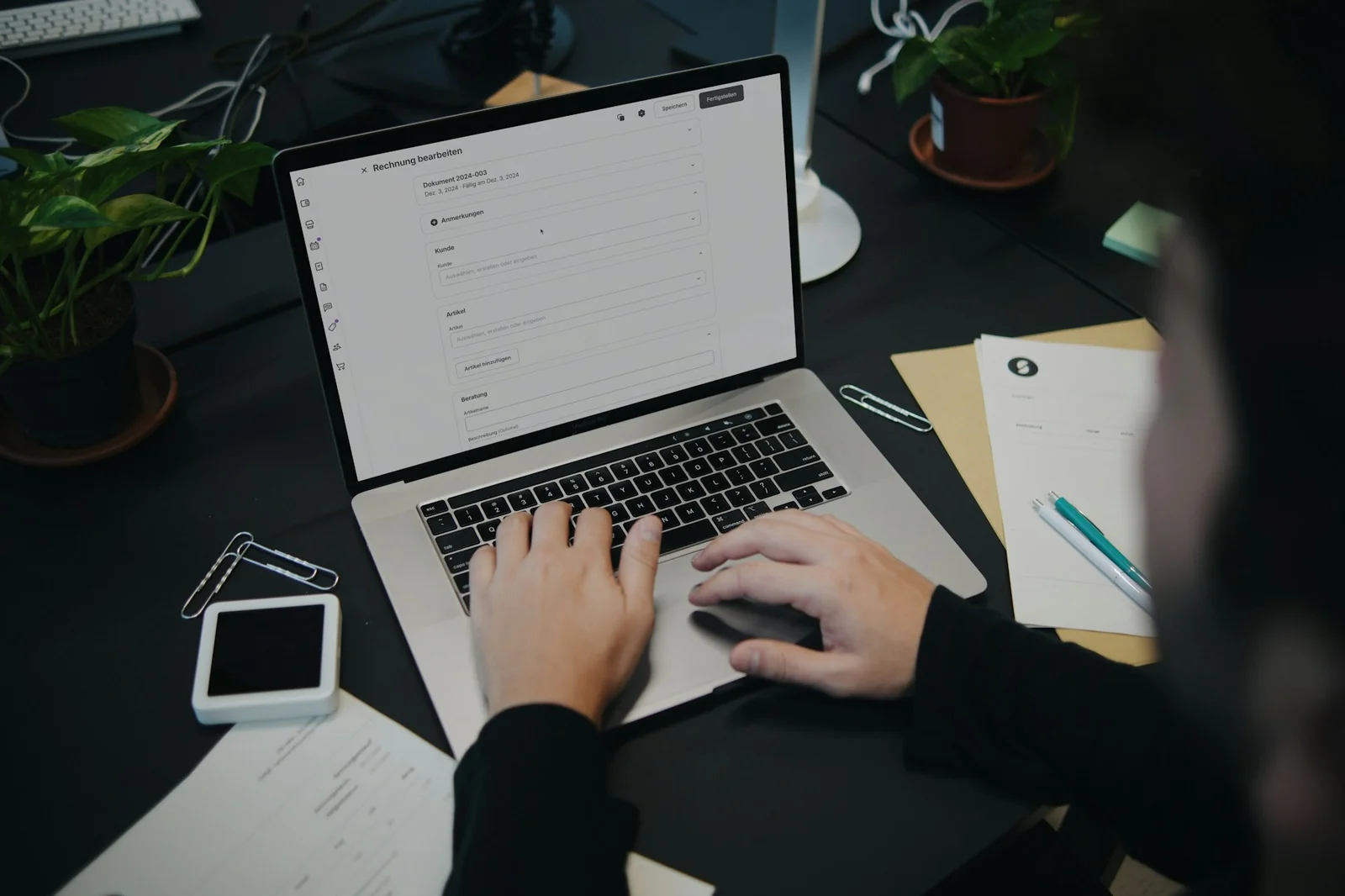
There is a significant difference between sending an invoice and sending an invoice online — and the difference shows up directly in how quickly you get paid.
A PDF attached to an email is technically digital. But it requires the client to open the attachment, read the payment details, log into their bank, find your account number, initiate a transfer, and remember to do it before the due date. That is six steps between receiving your invoice and paying it — each one an opportunity for delay.
An invoice sent through online invoicing software includes a Pay Now button. The client clicks once, pays by card or PayPal in seconds, and you receive a notification the moment the payment lands. That is one step.
The difference in average payment time between these two approaches is not trivial. Businesses that send invoices with embedded payment links get paid days — sometimes weeks — faster than those that send PDF attachments without them.
This guide covers how online invoicing actually works, how to set it up, how to send invoices that get paid quickly, and the common approaches that slow payment down unnecessarily.
What Online Invoicing Actually Means
Online invoicing is not simply sending a PDF by email — though that is how many people interpret it.
True online invoicing means:
Creating invoices in software — Not in Word, Google Docs, or Excel. In dedicated invoicing software that handles formatting, numbering, calculation, and record-keeping automatically.
Sending invoices from the software — The invoice is delivered to the client from the invoicing platform — with a branded email, a PDF attachment, and a direct payment link embedded.
Clients paying online directly from the invoice — Via a payment link, a Pay Now button, or a hosted payment page — without needing your bank details, without initiating a separate transfer, without any friction.
Automatic tracking and follow-up — The software tracks whether the invoice has been opened, whether payment has been made, and sends automatic reminders if it has not — without any manual effort from you.
This is what distinguishes online invoicing from emailing a PDF. And each element of it contributes to faster payment.
Why Online Payment Links Make a Measurable Difference
The friction between receiving an invoice and paying it is one of the most underappreciated factors in payment speed.
When a client receives a PDF invoice with bank transfer details, here is what paying it looks like from their side:
- Open the email
- Open the PDF attachment
- Note the bank details
- Log into their bank
- Set up a new payee (if not previously saved)
- Enter the amount
- Enter your account reference
- Confirm the transfer
- Wait for it to process
For a busy client, this ten-minute process is something that gets done when there is time for it — which often means it gets deferred to the end of the week, or the following Monday, or after the due date.
When a client receives an invoice with a Pay Now button:
- Open the email
- Click Pay Now
- Enter card details (or log into PayPal)
- Confirm payment
Sixty seconds. Done immediately. Before they close the email.
The reduction in friction directly reduces the time between sending an invoice and receiving payment. It is one of the highest-impact changes a small business or freelancer can make to their invoicing process.
Setting Up Online Invoicing — What You Need
Setting up proper online invoicing requires three elements.
01 — Invoicing Software
The foundation. Dedicated invoicing software — or a full accounting platform with invoicing built in — handles invoice creation, formatting, sending, tracking, and payment processing in one place.
What to look for:
- Professional invoice templates that produce polished output without design work
- Automatic invoice numbering
- Client database — stored client details that populate invoices automatically
- Direct email sending from the platform
- Payment link integration
- Invoice status tracking — sent, viewed, paid, overdue
- Automatic payment reminders
Accoru covers all of these — invoices are created, sent, tracked, and collected through the same platform, with payment links connected to Stripe and PayPal by default.
02 — Payment Processing Integration
For clients to pay online from the invoice, your invoicing software needs to be connected to a payment processor. The two most widely used are:
Stripe — Accepts credit and debit cards from clients anywhere in the world. The Pay Now button on Accoru invoices connects directly to Stripe. Clients pay by card without creating an account or logging in.
PayPal — Accepted by clients who prefer PayPal — common in many international markets and among individual clients rather than corporate ones. Connecting your PayPal business account to Accoru adds a PayPal payment option to every invoice.
Both can be connected simultaneously — giving clients a choice of payment method and maximizing the probability of immediate payment.
03 — Your Business Details Configured
Before sending your first invoice, configure your business details in the platform:
- Business name and logo
- Business address and contact details
- VAT or tax registration number (if applicable)
- Default currency
- Default payment terms
- Bank details (for clients who prefer bank transfer)
Setting these up once means they apply to every invoice automatically — you never manually enter your own business details on an invoice again.
How to Send an Invoice Online — Step by Step
Step 01 — Select or Add the Client
Open your invoicing software and select the client you are billing. If they are already in your client database, their name, email, billing address, default currency, and payment terms populate automatically.
If it is a new client, add their details — name, email, billing address. Store them in the client database so every future invoice to this client is equally fast.
Step 02 — Create the Invoice
Add your line items — description, quantity, rate. Invoicing software calculates the line totals, subtotal, and tax automatically. Review the totals to confirm they are correct.
Set or confirm the due date. Add any notes if relevant.
For recurring clients, save the invoice as a template — the next invoice to this client can be created in seconds from the saved template.
Step 03 — Preview
Preview the invoice before sending — a three-minute review that prevents the inconvenience of sending a corrected invoice. Check:
- Client details are correct
- Line items are accurate
- Total is correct
- Due date is stated explicitly
- Payment link will appear on the sent version
Step 04 — Send
Send directly from the platform. The client receives:
- A professionally branded email from your business
- The invoice attached as a PDF
- A Pay Now button linking directly to the payment page
- Clear due date and payment instructions
The entire process from opening the invoicing platform to sending the invoice takes two to five minutes for a typical invoice. Less for recurring clients where details are saved.
Step 05 — Track
After sending, the invoice appears in your invoicing dashboard with a Sent status. When the client opens the email and views the invoice, the status updates to Viewed — and you receive a notification.
When payment arrives, the status updates to Paid automatically. You receive a payment notification. The invoice is marked as paid and the amount is recorded in your accounting records.
If the due date passes without payment, the status updates to Overdue — triggering the automatic reminder schedule.
Step 06 — Automatic Reminders Handle the Follow-Up
Configure your payment reminder schedule once — Accoru sends reminders automatically at every stage you define:
- A pre-due reminder a few days before the due date
- A due date reminder on the day
- Overdue reminders at regular intervals — 7 days, 14 days, 30 days
Every reminder includes the invoice details and a Pay Now button for immediate payment. Reminders stop automatically when payment is received. You never manually write a payment chasing email.
Sending Invoice Emails That Get Opened and Acted On
The invoice email itself matters — not just the invoice it contains. An email that gets opened promptly leads to earlier payment than one that sits unread.
Subject line
Clear, specific, and professional. The client should immediately understand what the email is from and why it matters.
Good subject line formats:
- "Invoice #0042 from [Your Business Name] — Due [Date]"
- "[Your Business Name] Invoice #0042 — [Project Name]"
- "Invoice for [Project/Service] — [Your Business Name]"
Avoid vague subject lines — "Hi" or "Following up" — that do not signal an invoice is attached. Many clients have rules that filter invoices into specific folders — a clear subject line helps the email reach the right place and the right person.
Email body
Brief and professional. The invoice contains all the detail — the email body does not need to repeat it. A simple, warm message is sufficient:
"Hi [Name],
Please find attached invoice #0042 for [brief description of work] — due [date].
You can pay directly using the Pay Now button in the invoice, or by bank transfer using the details below.
Thank you for your business.
[Your name]"
Sending from a professional email address
Invoices sent from a professional domain email address — yourname@yourbusiness.com — look more credible than those sent from a personal Gmail or Hotmail account. If you are using a personal email address for business invoicing, consider setting up a professional domain email.
With Accoru, invoices are sent from your business email address — the platform sends on your behalf so the client sees the email as coming from you.
Common Online Invoicing Mistakes That Slow Payment
Sending PDF attachments without payment links
The most common. A PDF without a Pay Now button requires the client to initiate a bank transfer — significantly more friction than clicking a payment link. Add online payment links to every invoice.
Not sending from invoicing software
Creating invoices in Word and sending them as manual email attachments loses all the tracking and automation benefits — you cannot see whether the invoice was opened, you cannot track payment status automatically, and you cannot trigger automatic reminders.
Sending from the wrong email address
If you send invoices from a personal email but the client has your business email saved, your invoice may go to spam or be delayed in reaching the right person. Use a consistent professional email for all invoicing.
Not following up on late invoices
Many freelancers and small business owners delay following up on late invoices — either because they feel uncomfortable doing it or because they are too busy. Automatic payment reminders solve this entirely. Set them up before you send your first invoice.
Sending invoices late
Every day between completing work and sending the invoice is a day the payment clock has not started. Invoice on the day you complete the work, or set up recurring invoices that send automatically for regular clients.
Not including all payment options
Some clients strongly prefer card payment. Others prefer bank transfer. Some international clients use PayPal. Offering multiple payment methods — Pay Now via card, PayPal, or bank transfer details — removes a barrier for each client type and increases the probability of prompt payment.
Invoicing the wrong contact
Corporate clients often have specific accounts payable contacts — different from the project manager or day-to-day contact you deal with. Sending an invoice to the wrong person means it needs to be forwarded, which adds delay. Confirm the correct invoice recipient at the start of every engagement.
Sending Recurring Invoices Automatically
For clients billed on a regular schedule — monthly retainers, subscription services, ongoing project work — recurring invoices eliminate the manual billing process entirely.
In Accoru, setting up a recurring invoice takes about two minutes:
- Select the client
- Add the line items and amount
- Set the schedule — weekly, monthly, quarterly, or custom
- Set the start date and end date (or leave it running indefinitely)
- Activate
From that point, Accoru generates and sends the invoice automatically on the scheduled date — with payment reminders running automatically if payment is not received. You receive notifications when each invoice is sent and when each payment arrives.
For a business with ten retainer clients billed monthly, this eliminates 120 manual invoicing tasks per year — and the associated follow-up.
Online Invoicing for International Clients
Sending invoices to international clients adds a few considerations.
Currency: State the invoice currency explicitly. Configure Accoru to invoice each international client in their preferred currency — the client receives an invoice in USD, GBP, EUR, or whichever currency applies, and Accoru handles the home currency conversion automatically.
Payment methods: Card payments via Stripe work internationally — clients in most countries can pay by card in their local currency with automatic conversion. PayPal is well-established in many international markets and is a familiar payment option for many international clients.
Bank transfer details: For clients who prefer bank transfer, include international bank details — IBAN and BIC/SWIFT — in addition to domestic account details.
Time zones: When sending invoices to clients in different time zones, the timing of delivery matters less than for other communications — invoices are not time-sensitive to open immediately. But if you are sending a reminder or a follow-up, consider whether your 9am is their 2am.
How Online Invoicing Connects to Your Accounting
One of the most significant advantages of sending invoices through dedicated accounting software — rather than standalone invoicing tools — is that every invoice is automatically recorded in your accounting records.
When you send an invoice in Accoru:
- The invoice creates an accounts receivable entry — recording that the client owes you money
- When payment is received, the accounts receivable entry is cleared and income is recorded
- The transaction appears in your financial reports — Profit & Loss, aged receivables, cash flow
- Bank reconciliation matches the payment to the invoice automatically
This means your accounting records stay current automatically as you invoice and collect — without any separate data entry.
Standalone invoicing tools that are not connected to accounting software create a gap — invoices exist in one place, accounting records in another, and the two need to be manually reconciled. This is unnecessary complexity that dedicated accounting software with built-in invoicing eliminates.
Summary
Sending invoices online — through proper invoicing software with embedded payment links — is one of the most direct ways to reduce average payment time for any small business or freelancer.
The key elements:
- Use dedicated invoicing software — not Word or spreadsheets
- Connect Stripe and PayPal — put a Pay Now button on every invoice
- Send from the platform — get invoice tracking and automatic reminders
- Invoice immediately after completing work — start the payment clock as soon as possible
- Set up automatic payment reminders — before you send your first invoice
- Use recurring invoices for regular clients — eliminate manual billing entirely
- Include all payment options — remove friction for every client type
The difference between a PDF emailed from your inbox and an invoice sent through online invoicing software is the difference between a payment process that requires six client steps and one that requires one. That friction difference shows up every month in how fast your cash arrives.
Frequently Asked Questions
Q: What is the fastest way to get paid on an invoice? A: Include a Pay Now button connected to Stripe or PayPal on every invoice. Card payment takes 60 seconds for the client and settles in your account within one to two business days. Reducing payment friction — from bank transfer initiation to a single click — is the most direct way to reduce average payment time.
Q: Can I send invoices online for free? A: Some platforms — Wave, for example — offer free invoicing. The trade-off is typically limited features (no automatic payment reminders on Wave's free plan) and payment processing fees when clients pay by card. Paid invoicing platforms typically include automatic reminders and charge market-rate processing fees through Stripe or PayPal rather than adding their own layer of fees.
Q: How do I send an invoice to a client who does not pay by card? A: Include bank transfer details in addition to the Pay Now button on every invoice. Clients who prefer bank transfer can use your account details directly from the invoice. Offering both options — card payment and bank transfer — covers every client preference without requiring separate invoice versions.
Q: What happens if a client does not receive my invoice? A: Check your invoice tracking — Accoru shows whether the invoice email was delivered and whether the invoice was viewed. If it was not viewed within a reasonable period, resend directly from the platform or follow up by phone. For corporate clients, confirm the correct email address for invoices — accounts payable addresses often differ from project contact addresses.
Q: Can I send invoices in different currencies to different clients? A: Yes — with multi-currency invoicing software. Accoru supports 150+ currencies. Set a default currency per client — every invoice to that client uses their currency automatically, with home currency conversion handled in your accounting records.
Q: How do automatic payment reminders work? A: You configure a reminder schedule once — for example, a reminder three days before the due date, on the due date, and at seven and fourteen days overdue. Accoru sends professionally worded reminders automatically at each stage for every invoice. Reminders include the invoice details and a Pay Now button. They stop automatically when payment is received.
Accoru sends professional invoices with Pay Now buttons connected to Stripe and PayPal — with automatic payment reminders, invoice tracking, and full accounting integration built in.